AI Background Removal for Highly Reflective Objects: A Jewelry E-commerce Guide
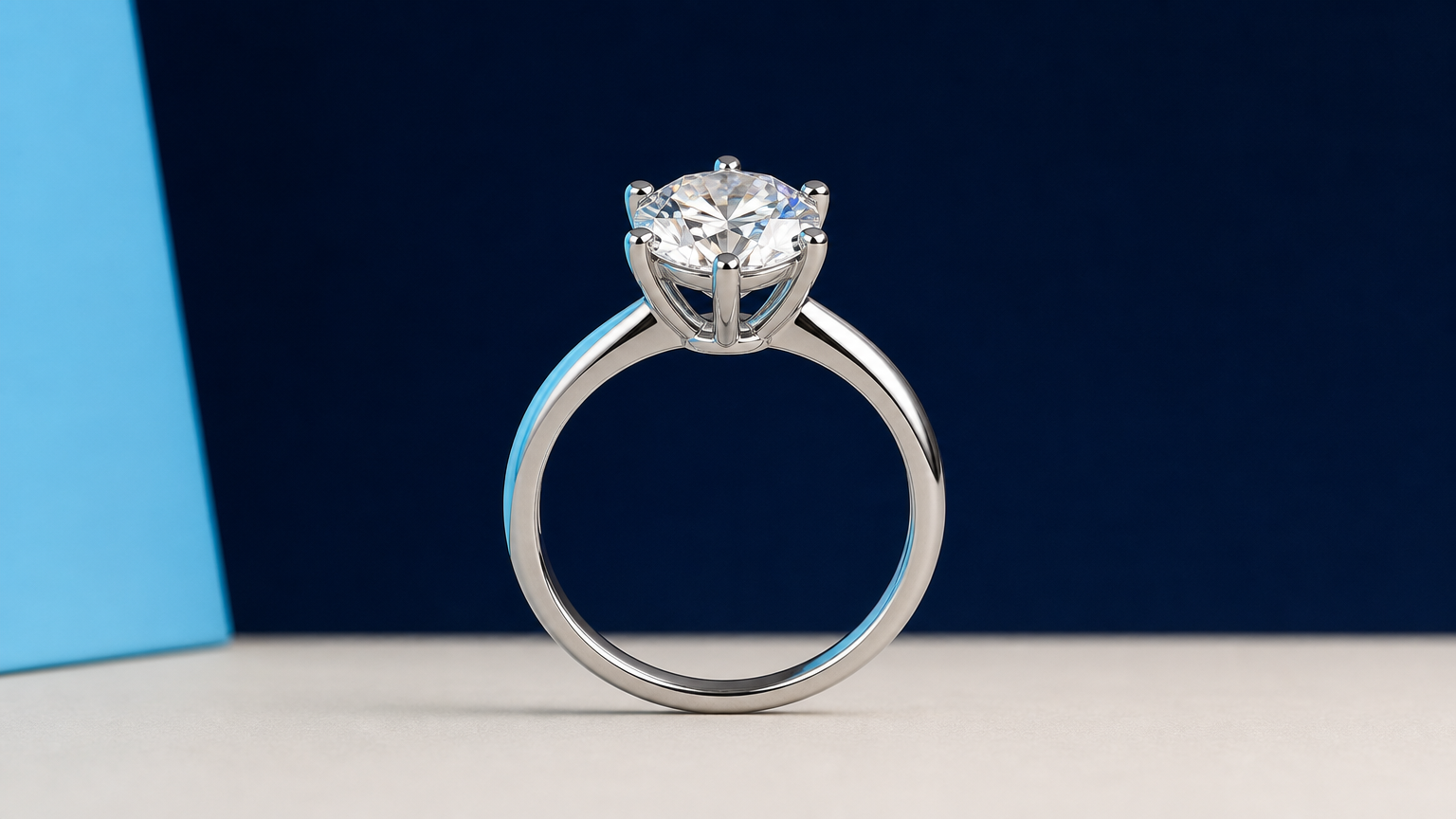
A jewelry product photo can fail long before a shopper notices the price. A clipped chain, a missing prong, or a metal edge that suddenly looks matte can make a real piece seem poorly made. That is why background removal for jewelry needs a different review process from background removal for a cotton shirt or a boxed product.
Jewelry combines thin edges, polished metal, translucent stones, and reflections of the surrounding set. The aim is not to erase every bright highlight. It is to separate the item cleanly while keeping the details that show its material, shape, and finish.
Why reflective jewelry is difficult to isolate
A background-removal tool estimates which pixels belong to the subject and which belong to the scene around it. With jewelry, that boundary is often ambiguous. A silver bracelet may mirror a white sweep. A gemstone can show a pale edge that is part reflection and part transparency. A fine chain can occupy only a few pixels at its narrowest points.
The challenge is not just getting a transparent background. It is preserving the visual cues that make a product look like jewelry:
- clean but continuous edges around prongs, clasps, and links;
- natural specular highlights on polished metal;
- visible gaps between chain links and open settings;
- consistent geometry, stone color, and metal finish across catalog images.
If a cutout loses those cues, a new background will not fix the result. Start with a source image that makes the product easy to read.
Prepare the source image before background removal
Good source photography reduces the amount of edge recovery required later. Place the jewelry far enough from the backdrop that its outline is visible, and avoid backgrounds that create reflections similar to the product itself. A simple sweep can work well, but do not expect a white background to disappear cleanly from a white-gold piece without careful review.
For a repeatable catalog workflow, keep the camera angle, product scale, and lighting direction consistent. This helps reviewers spot an unusual edge or shadow because the images are comparable from one SKU to the next.
Before processing, check for common problems:
- dust or fingerprints that could be mistaken for a boundary;
- chains touching the edge of the frame;
- very dark, crushed shadows under the product;
- visible reflections of the camera, stand, or room in polished surfaces;
- overexposed highlights that remove detail from a stone or metal edge.
A practical workflow for background removal for jewelry
- Choose the cleanest available frame. Select an image in which the complete product is visible and the metal, stones, and fasteners can be inspected at normal zoom.
- Create the initial cutout. Use Remove Background to separate the jewelry from the original scene. Treat this as a first pass, not an automatic final asset.
- Inspect the product at full size. Look closely at the outer silhouette, internal gaps, chain links, prongs, clasp openings, and the edge of every stone. A clean thumbnail can hide a broken link or a halo that becomes obvious in a marketplace zoom view.
- Check the alpha edge on more than one background. Place the result on white, deep navy, and a mid-tone neutral surface. A pale fringe may be invisible on white but appear around the product on a darker page.
- Confirm reflections still describe the real object. Highlights should follow the metal's form. Do not remove every bright area simply because it resembles the backdrop. Flat metal often looks less credible than metal with controlled, consistent reflections.
- Export a master cutout before making variants. Keep the isolated image as the approval point. Use copies for listings, campaign scenes, or color-specific background treatments.
What to review after the cutout
Quality control is where a jewelry workflow earns its value. Reviewers do not need to judge whether an edge is mathematically perfect. They need to decide whether the image is faithful to the product and ready for the place it will be used.
Fine metal details
Zoom into prongs, earring posts, ring settings, clasps, and the spaces inside open shapes. Watch for rounded-off tips, gaps that have been filled, and pieces of background left between links. When a chain is thin, compare its thickness along the full length. Sudden changes can make it look broken.
Gemstones and translucent materials
Gemstone edges can contain bright, semi-transparent pixels. Removing all of them can make the stone look cut from paper. Leaving too much can leave a visible glow from the original set. Check the same cutout against light and dark backgrounds before approving it.
Halos and contaminated color
A halo is a pale or colored fringe left from the original backdrop. It is especially noticeable around silver, diamonds, and clear stones when the image is placed on a dark background. Inspect the contour at 100% zoom and at the size used in your storefront. Both views matter.
Contact shadows
A shadow can help a product feel grounded, but only when it belongs to the item and matches the new surface. Do not keep a hard shadow from the original studio setup if the product will be placed on a different background. Keep a transparent master when possible, then add or adjust a shadow for each final composition.
Keep isolation separate from background styling
Isolation and styling solve different problems. First, create an approved cutout that preserves the jewelry. Then decide where it should appear. For a plain catalog image, a clean white or neutral background may be enough. For a campaign visual, a controlled surface can add context without changing the product itself.
Once the cutout is approved, you can use the AI Background Generator to explore product backgrounds. Review the final image for believable contact points, lighting direction, and reflections. A new scene should support the jewelry, not invent details in the product or disguise edge problems.
Build a repeatable catalog QA checklist
For teams processing many SKUs, consistency matters as much as any single image. Use the same approval questions for every item:
- Is the full product visible, with no clipped links, prongs, or posts?
- Do the metal highlights still follow the real shape of the piece?
- Are stone edges clear without a glow from the old background?
- Does the cutout stay clean on both light and dark test backgrounds?
- Are the product color, geometry, materials, and included components unchanged?
- Does any added shadow match the chosen final background?
This checklist makes it easier to flag exceptions early, such as a necklace that needs individual retouching or a highly mirrored item that needs a new source shot.
When to reshoot instead of forcing the edit
AI background removal can reduce routine editing work, but it cannot recover details that are not present in the source. Reshoot when a highlight has erased a key edge, a reflection hides an important feature, a chain overlaps itself in a confusing way, or the product is too close to the frame edge. A cleaner original is usually faster to process than repeated attempts to rescue a difficult cutout.
For a broader product-photo workflow, Packshot PRO can help create a more consistent presentation after you have approved the product isolation. Keep the original product characteristics as your standard throughout the process.
FAQ
Can AI remove the background from silver and gold jewelry?
It can create a useful initial cutout, but polished metal needs close review. Preserve highlights that describe the surface, and check the edge against more than one background.
Why does a jewelry cutout look dull after background removal?
Important reflections or semi-transparent edge pixels may have been removed. Compare the result with the source image and restore the visual cues that show the metal's shape and finish.
How do I avoid a white halo around diamonds or clear stones?
Test the isolated image on a dark background as well as white. If a pale fringe appears, refine the edge before using the image in a campaign or product listing.
Should every jewelry image use the same background?
Not necessarily. A consistent catalog background helps comparison, while a campaign may need a different setting. In both cases, approve the isolated product first and keep the product itself unchanged.
Make the cutout the quality checkpoint
For reflective products, the isolated file is not a minor production step. It is the point where you verify that a customer will still see the actual product: its outline, material, stone settings, and finish. With a clean source image, an initial AI cutout, and deliberate edge review, you can build a faster workflow without treating every jewelry item as a generic object.
If you want to test this workflow on your own catalog images, start with Remove Background in Deep-Image.ai and review the result on more than one final background before publishing it.
