Adobe Retired GPT Image in Creative Cloud: What to Do When Your Usual AI Edit Model Disappears
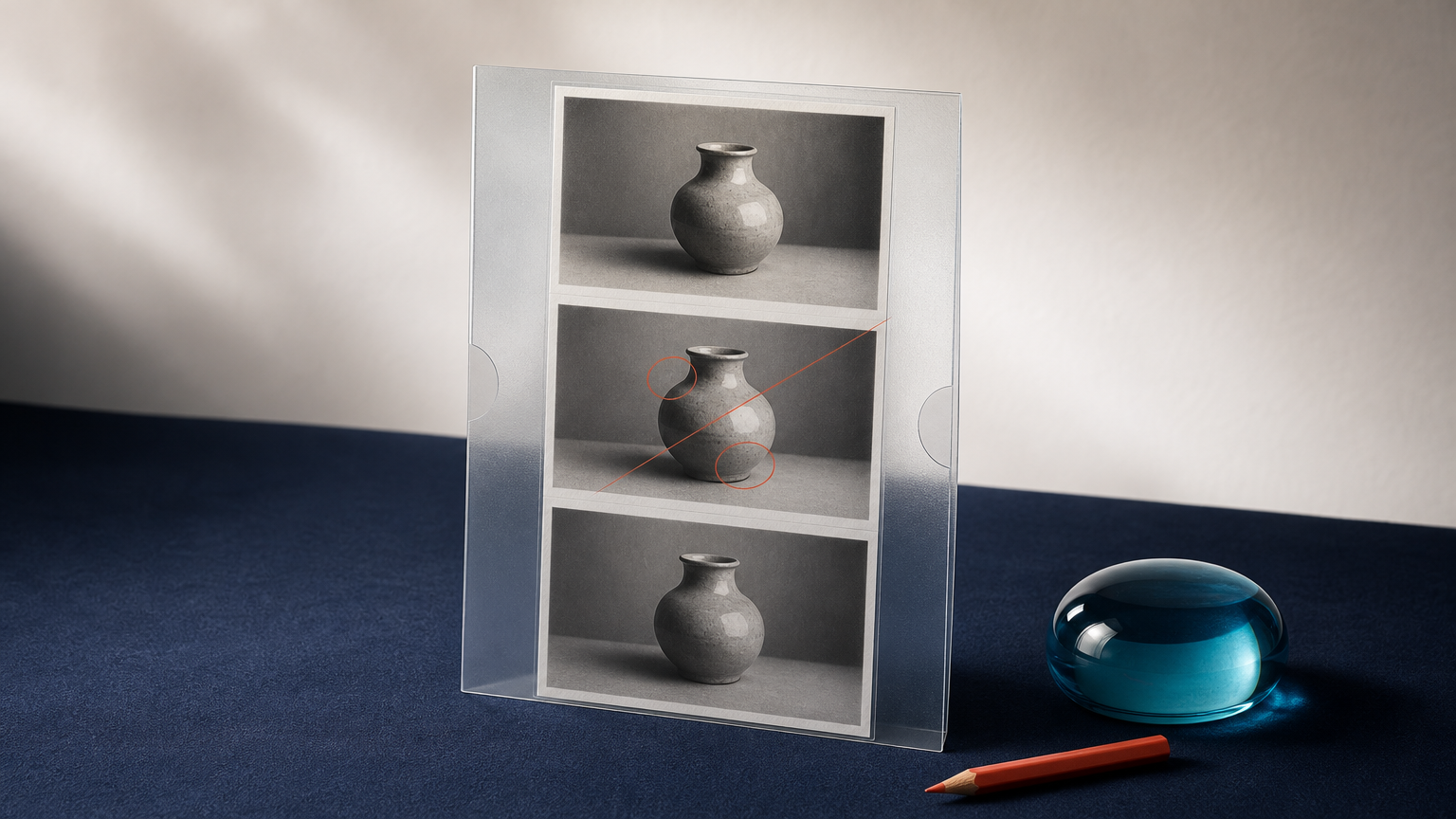
If you opened a Creative Cloud generative workflow and the GPT Image generation model was no longer available, you did not miss a hidden setting. Adobe’s model-retirement page lists GPT Image as Deprecated with a deprecation date of October 23, 2026.
That can be frustrating when a model became part of your usual rhythm: upload a photo, ask for a background change or color adjustment, then refine the result. The most useful response is not to chase an identical replacement. It is to protect the files and decisions that made the earlier workflow useful, then recreate one simple edit with a clear brief and a careful review.
This guide is for creators working with a real photo, product image, or design reference. It will not make another model behave exactly like GPT Image. It can help you move an editing task forward without losing the original, your prompt intent, or your standards for what counts as an acceptable result.
What changed in Adobe Creative Cloud
Adobe’s current generative-AI model retirement page says that partner models may be removed for reasons including low usage, quality concerns, contract expiry, or the end of provider support. The page lists GPT Image generation model as deprecated on October 23, 2026.
Deprecated describes the model’s status in Adobe’s available partner-model lineup. It does not mean your previous source photos or project files have disappeared. Start there: preserve what you own before experimenting with a different image-editing workflow.
Save the parts of the edit that matter
A model can disappear, but the creative brief should not disappear with it. Before you retry the job elsewhere, gather the material that lets you judge a new result against what you actually wanted.
- Keep the highest-quality source image. Save the original photo separately from any generated variation, export, screenshot, or social-media crop.
- Save the last acceptable version. If an earlier edit is close to what you need, keep it as a visual reference. It shows the composition, mood, and level of change you approved, even if a new tool will not reproduce it exactly.
- Copy the useful part of the prompt. Remove vague phrases and keep the instruction that identifies the intended change. For example, “make it better” is not reusable, but “replace only the background with a pale studio wall” is.
- Write down what must not change. A portrait may need the same identity, expression, pose, clothing, and camera angle. A product image may need the same shape, material, color, label, logo, controls, and included parts.
- Keep a version trail. Give files purpose-based names such as
ceramic-vase-original.jpg,ceramic-vase-reference-edit.jpg, andceramic-vase-new-background-test.jpg.
This takes a few minutes, but it prevents a common migration mistake: comparing a new output only with memory. Your original file and last approved version are better evidence than a recollection of how a retired model used to feel.
Recreate one small edit before rebuilding a whole project
Start with one bounded task. Do not ask a new model to change the location, lighting, wardrobe, camera angle, expression, and style at the same time. A narrow edit is easier to inspect and easier to retry.
For example, choose one of these first:
- change a product-photo background while keeping the item unchanged;
- change the color of a jacket while keeping the person, pose, and scene unchanged;
- remove one distracting object from a personal photo;
- create a warmer version of an existing image without changing the subject.
Deep-Image.ai’s Prompt Based Edit lets you upload a photo and describe a change in plain language, then refine the result step by step. It also supports using up to three images in one edit. That can be helpful when you want to keep an original source at hand, but it is still important to treat each output as a new version to review.
Use a model-agnostic prompt brief
Different models interpret the same wording differently. A prompt that worked well before may need adjustment, but its structure can still travel. State what to preserve, request one change, describe the desired look, and rule out the most harmful drift.
For a product background change
Use this product photo as the reference. Preserve the product's exact shape, proportions, color, material, label, logo, controls, and included parts. Replace only the background with a light neutral studio wall and soft natural shadow. Do not alter the product, add props, create readable text, or change the camera angle.This is a suggested prompt, not evidence of a tested output. If the first result changes the product, simplify the request rather than piling on more styling instructions.
For a portrait color edit
Use this portrait as the reference. Preserve the person's identity, facial proportions, hairstyle, expression, pose, clothing details, and camera angle. Change only the jacket color to deep green. Keep the same lighting and background. Do not change the face, skin texture, accessories, or add text.The key is to give the new model a small, checkable job. You can add another change later, after you know the first one held onto the details you care about.
How to review the first result
A substitute model may produce a beautiful image that is still wrong for your purpose. Review the new output beside the original source and the last acceptable version if you have one.
- Check the non-negotiable detail first. For a product, start with the silhouette, material, labels, and included parts. For a person, start with recognizable facial features, hairline, expression, and pose.
- Inspect the edge of the requested change. Look where the background meets hair, hands, clothing, reflections, or product edges. This is where unwanted changes often show up.
- Read every visible word. Do not accept generated labels, packaging, signs, or poster text without checking the characters carefully.
- View it at the intended size. A social post, a store listing, and a large print reveal different problems. Look at the size your audience will actually see.
- Stop when the brief is met. Extra rounds can introduce drift. If the image now solves the original problem and remains faithful where it needs to, save that version and move on.
If you need to make another adjustment, use the approved output as a checkpoint but continue comparing back to the original source. A chain of small edits can look consistent while slowly changing details that matter.
When a different workflow is the better answer
Not every task should move to another general prompt-based editor. If the job is mainly about adding room around an image, a dedicated expansion workflow may be easier to assess. If you need to change only a selected object, a local editing tool can reduce the chance of the rest of the image changing. If a product must be shown exactly as sold, a new creative variation is not a substitute for a factual product photo.
Use the smallest change that solves the actual problem. Our guide to reference-photo editing for everyday creators offers a related rule: a more convincing generated variation still needs comparison with the source before it is used as a public-facing image.
Keep the old workflow as a brief, not a promise
Adobe’s October 23, 2026 retirement listing answers the immediate question of why GPT Image may no longer appear in Creative Cloud. The next question is practical: can you make the edit you need without pretending another model will produce the same pixels or the same behavior?
Keep the source, save the last approved version, reuse the intent behind a focused prompt, and inspect the result against what matters. If you want to try a one-change-at-a-time alternative, start a new edit in Prompt Based Edit with a copy of your image, then accept only a result that holds up beside the original.
FAQ
Did Adobe remove GPT Image from Creative Cloud?
Adobe’s generative-AI model retirement page lists GPT Image generation model as deprecated on October 23, 2026. Check Adobe’s current model list if you need to confirm what is available in your specific workflow.
Will another AI model give me the same result as GPT Image?
Not necessarily. Different models can interpret the same image and prompt differently. Preserve your original, reuse a focused brief, and review the new output as a separate version rather than expecting a pixel-for-pixel match.
What should I save before changing AI image-editing tools?
Keep the original high-quality image, the last approved output, the useful prompt wording, a list of details that must stay true, and clear file names for each checkpoint.
How can I reduce unwanted changes in a new AI edit?
Ask for one change at a time, explicitly state what should stay the same, and compare the result with the original source. If the requested change touches a crucial product detail, face, or visible text, be ready to choose a more controlled workflow instead.
