How to Make a Blurry Phone Photo Clearer Without Changing the Person in It
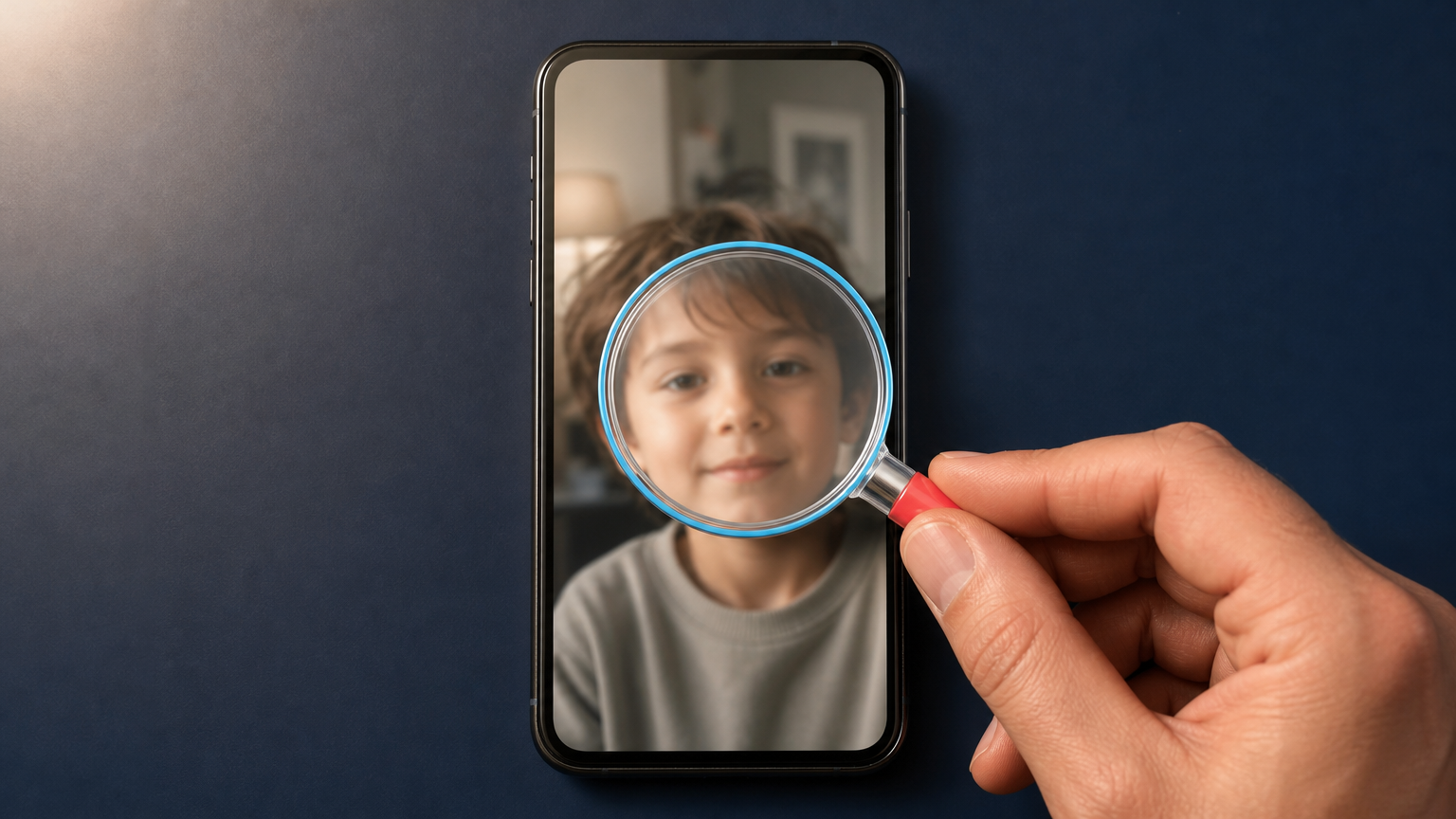
A soft phone photo can still be the only picture that captures the moment: a child laughing at dinner, a grandparent opening a gift, or a quick group photo taken in a dim room. You may be able to make that image easier to view and share. The important part is knowing what a careful improvement looks like.
When you try to make a blurry phone photo clear, aim for a more legible version of the same photograph, not a newly imagined portrait. Blur, noise, weak contrast, and a color cast can make a face hard to see. But if the original never recorded a detail, an AI result can only estimate it. Keep the original file, work on a copy, and choose the version that still looks like the person you photographed.
What a careful enhancement can and cannot fix
Phone photos often look soft for more than one reason. Low light can add speckled noise. A moving hand can create motion blur. Digital zoom can leave too few pixels. Compression from messaging apps can remove fine detail. An enhancement can reduce some of these distractions and create a larger, cleaner-looking derivative.
It cannot reliably recover information that was never captured. If both eyes are only a few indistinct pixels, a result with crisp eyelashes may look convincing without being trustworthy. Treat strong new texture in a face, hair, patterned clothing, or lettering as something to inspect, not as proof that the original contained it.
Start with the best copy you have
Before editing, look for the photo in the phone's camera roll, cloud library, or the device that took it. That is usually a better starting point than a screenshot or a version saved from a chat app. If someone sent you the image through a messaging service, ask for the original file or the highest-quality share option.
- Keep the source untouched. Duplicate the photo before changing anything. Give the working copy a clear name such as
birthday-portrait-enhanced. - Check the image at normal size. Decide what is actually bothering you: low light, noise, softness, a color cast, or an image that is simply too small.
- Set a modest goal. For a family portrait, “easier to recognize on a phone screen” is often a better target than “perfectly sharp.”
If the issue is mostly a blue, yellow, or overly dark look, targeted light and color adjustments may be enough. Our guide to light and color correction explains why it is useful to correct the visible problem before adding more detail.
Use a conservative enhancement pass first
Auto Enhance is Deep-Image.ai's automatic photo-improvement tool. It is a practical place to begin when a phone portrait needs general cleanup rather than a creative rewrite. Upload a copy of the best available source, generate a result, and compare it with the original before downloading or sharing anything.
Do not judge the result only by whether it looks sharper at first glance. A strong treatment can increase contrast and apparent detail while also making skin look waxy, changing the shape of an eye, or creating repetitive hair texture. A slightly softer result that keeps the face recognizable is usually the better family-photo result.
A simple review order
- Look at the whole image. Does the exposure, color, and overall clarity make the moment easier to see?
- Check the face. Compare eye spacing, eyelids, nostrils, lips, ears, hairline, and any distinctive freckles, glasses, or jewelry with the source.
- Check the edges. Inspect hair against the background, fingers, clothing seams, and the outline of the head for halos or smeared areas.
- Read visible text. A sign, shirt logo, or birthday card can become misleading if letters change.
- Compare at the intended size. If you only plan to share the photo in a family chat, view both versions at that size before choosing one.
How to tell when the result has changed too much
Stop and return to the original or a lighter alternative when a result does any of the following:
- makes a person look noticeably older, younger, or like someone else;
- changes the shape of eyes, teeth, lips, ears, or jawline;
- adds smooth plastic-looking skin or repeated strands of hair;
- creates false detail in clothing patterns, jewelry, wall texture, or text;
- makes a dim scene look as though it was lit differently enough to alter the memory of the moment.
A useful question is: Would someone who knows this person recognize them in the enhanced version without being told it was edited? If the answer is no, the result has moved from cleanup toward interpretation.
The same principle applies to larger or more generative treatments. Our article on faithful restoration versus creative AI upscaling explains why a plausible sharp image is not always a source-faithful one.
Match the fix to the visible problem
Not every soft phone photo needs the same workflow. Use the smallest intervention that addresses the issue you can actually see.
- Noisy indoor photo: Start with general cleanup, then check whether faces and skin texture still look natural.
- Photo with a strong color cast: Correct the light and color first. Better white balance can make a face easier to read without trying to reconstruct more detail.
- Small file needed for a larger crop: Consider a careful enlargement only after reviewing the cleaned version. A larger file is not automatically a more accurate one.
- Heavy motion blur: Try a conservative result, but be ready to keep the original. A blurred face can sometimes be improved for viewing, yet not restored to the detail of a still photo.
For an image that mainly needs more usable dimensions, AI Image Upscale can create a larger derivative. Review it against the original in the same way, especially when the image contains people.
Keep a trustworthy version of the memory
Save the original and the selected enhancement as separate files. This protects the source and gives you a simple way to revisit the decision later. If you make more than one version, name them by purpose instead of calling the latest file “final.” For example:
family-dinner-original.jpg
family-dinner-cleaned-for-sharing.jpg
family-dinner-larger-print-copy.jpg
That small habit matters when a photo is emotionally important. It lets you share a clearer copy while preserving the actual record of the moment.
A practical stopping rule
Stop editing when the photo is clearer for its intended use and the person still looks like themselves. Do not keep pushing for sharpness just because another pass is available. Extra processing creates more chances for faces, hair, and small objects to drift away from the source.
If you want to try a careful cleanup on a copy of your own image, start with Auto Enhance, compare the result side by side with the original, and keep the version that improves visibility without changing what the photograph means.
FAQ
Can AI make a blurry phone photo perfectly clear?
Not always. AI can reduce visible noise and softness, but it cannot verify fine detail that the camera never captured. Treat a very sharp result as a derivative to review, not as a recovered original.
How can I make a blurry face clearer without changing it?
Begin with the highest-quality original, use a restrained enhancement, and compare facial landmarks with the source. Check eye spacing, face shape, hairline, glasses, jewelry, and other distinctive details before accepting the result.
Should I enhance a photo that was sent through a messaging app?
You can, but first try to find the camera-roll original or ask the sender for the highest-quality version. A compressed copy contains less information and gives any enhancement less reliable material to work with.
Should I delete the original after enhancing it?
No. Keep the original unchanged and save the enhanced version as a separate file. The source is the best reference if you need to compare results or try a different treatment later.
