Adobe Lightroom’s Open Eyes Explained: When AI Can Save a Blinked Group Photo, and When to Retake It
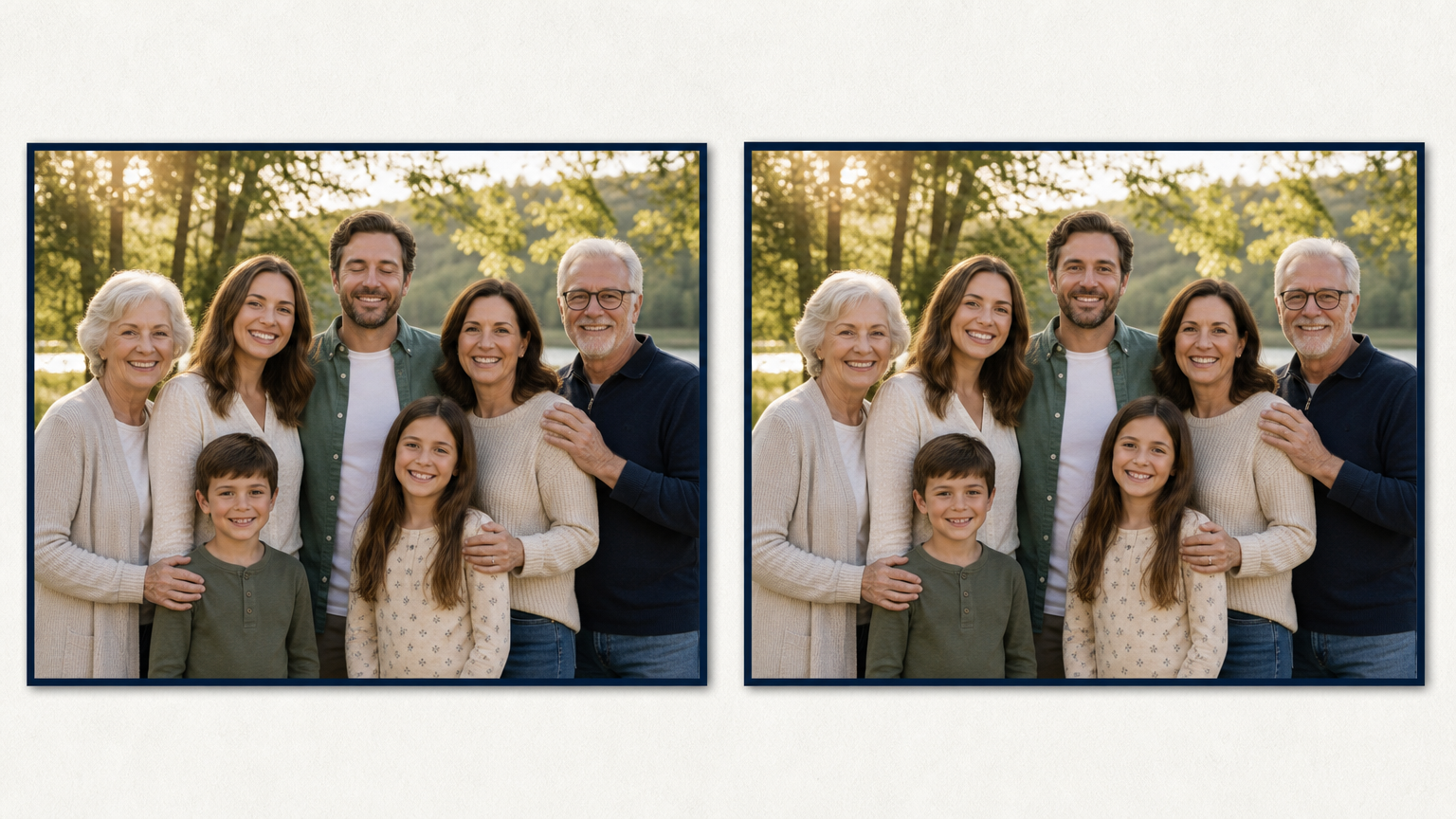
One blink can ruin the photo where everyone else looks great. That is the problem Adobe is trying to solve with Open Eyes, a new Lightroom Mobile Quick Action announced on October 19, 2026. When Lightroom detects closed eyes, Adobe says the feature can generate an eye-opening correction. If your Lightroom library has other photos of the same person, it can use them to better match that person’s eye color, shape, and size.
That sounds ideal for a family group shot, a graduation photo, or a quick event portrait. But an eye-opening edit is not the same as recovering a detail that was already visible. It creates a new version of the image. The useful question is not simply, “Can AI fix this blink?” It is: Does this correction still feel like an honest version of the moment?
What Lightroom Open Eyes does
Adobe describes Open Eyes as a one-tap Quick Action in Lightroom on mobile. It appears when the app detects that someone’s eyes are closed, then generates a natural-looking correction. Adobe also says that other photos of the person in your Lightroom library can help it make a closer match.
That makes the feature different from a basic brightness or sharpness adjustment. A brightness adjustment changes information already in the photo. Opening closed eyes asks software to create a facial detail that was not captured in that frame, even if it draws on other pictures of the same person.
This is not automatically a problem. Family photos are often kept because they represent a shared occasion, not because every pixel is documentary evidence. Still, the closer the photo is to a record of a real event, the more carefully you should decide what to change.
When an AI eye-opening edit is a sensible choice
Open Eyes is most reasonable when the edit repairs a small, familiar accident in an otherwise accurate image. A single person blinked, but their pose, expression, clothing, lighting, and the rest of the scene are already right.
- One person blinked in a casual family group photo. The picture still represents the people who were there and the moment that happened.
- You have several nearby shots of the same pose. Compare them first. They can help you decide whether the AI result resembles the person as they actually looked that day.
- The image is for a private album, family chat, or informal print. A light correction may make a cherished photo easier to enjoy without changing its meaning for the audience.
- The corrected eye is not the point of the image. In a wide group shot, a subtle correction may be less consequential than in a close-up portrait.
Think of it as a practical rescue for a near-miss, not a reason to rewrite an expression. If a corrected version helps the photo reflect how the group remembers the moment, it may be a good choice.
Check these details before you share the result
Adobe calls the intended result natural-looking. Treat that as a goal to assess, not a guarantee. Compare the correction with the original and, where possible, with another photo taken seconds before or after.
- Look at both eyes together. Check their size, direction, eyelid shape, catchlights, and how they sit with the person’s smile. An open eye that points slightly differently can make a face feel unfamiliar.
- Check the expression, not just the eye. A blink during a laugh, sneeze, or bright sunlight may involve cheeks, eyebrows, and mouth. An isolated open eye can look pasted into a moment when the rest of the face still shows a blink.
- Review the result at normal viewing size. Zooming in is useful for spotting errors, but also view the photo as it will be shared. A minor imperfection that disappears in a family album may not need another edit.
- Compare with a nearby frame. If you took a burst or several group shots, one may already contain the expression you need. A real alternate frame is usually the more faithful option.
- Keep the original file. Save the corrected image as a separate version. The unedited photo remains the record of what the camera captured.
The same careful review matters with other forms of AI photo repair. Our guide to making a blurry phone photo clearer without changing the person explains why a plausible detail deserves a comparison with the source.
When a retake is better than an AI fix
Retaking the photo is the better answer when you still can. It gives you real visual information instead of a generated substitute, and it is usually faster than examining a questionable result.
Ask for another shot when:
- more than one person has closed eyes or an awkward expression;
- the person is close to the camera and their face is a major part of the image;
- the moment is still happening, such as a posed family photo, team picture, or informal event group;
- the photo will be used in a professional, journalistic, legal, or other context where it should remain a faithful record;
- the generated correction changes the person’s recognizable expression or makes the result feel artificial.
A retake is also kinder when someone would not want a generated change to their face. If the image is shared publicly, ask the person whose eyes were edited if they are comfortable with the version.
A simple decision rule for meaningful photos
Use the smallest intervention that solves the problem. If another real frame has everyone’s eyes open, choose that. If the blink is isolated and the AI correction is subtle, keep both the original and the edited copy. If the photo is meant to document something important, be more conservative and say what was changed when context calls for it.
For older or damaged pictures, the boundary can be even less obvious. Our explanation of faithful restoration versus creative AI upscaling is useful background: an image can look convincing while including details the original did not contain.
Use the correction without pretending it was the original
Lightroom Open Eyes can save a photo that would otherwise stay in the “almost” folder. For everyday family memories, that can be genuinely useful. Just treat the result as an edited version, not as proof that the camera caught a different expression.
Before you share it, compare the face with the original, look for a better real frame, and keep both files. If the corrected image still looks like the person and still represents the moment fairly, it can be the version your family chooses to enjoy. If it changes the expression or leaves you unsure, retake the photo when possible or keep the blink. A real imperfect photograph is often more valuable than a polished one that no longer feels true.
FAQ
Is Lightroom Open Eyes free?
Adobe’s October 19, 2026 announcement says Open Eyes is available in Lightroom on mobile and can be used for free. Availability can change, so check the current Lightroom Mobile app information before relying on it for a particular workflow.
Can Lightroom Open Eyes use another photo of the same person?
Adobe says it can use other photos of that person in your Lightroom library to better match their eye color, shape, and size. Review the output carefully, because a closer match is still a generated correction.
Should I use AI to fix closed eyes in a wedding or milestone photo?
It can be appropriate for a personal keepsake when the change is small and everyone involved is comfortable with it. For formal documentation or an image where facial expression carries special meaning, look for another real frame first and keep the original regardless.
What should I do if the generated eyes look wrong?
Do not keep refining blindly. Return to the original, compare nearby shots, and use the best real frame if one exists. If no alternative works, an honest blink may be preferable to a face that no longer looks like the person.
