AI Image Generation for Print-on-Demand: Bridging the DTG Resolution Gap
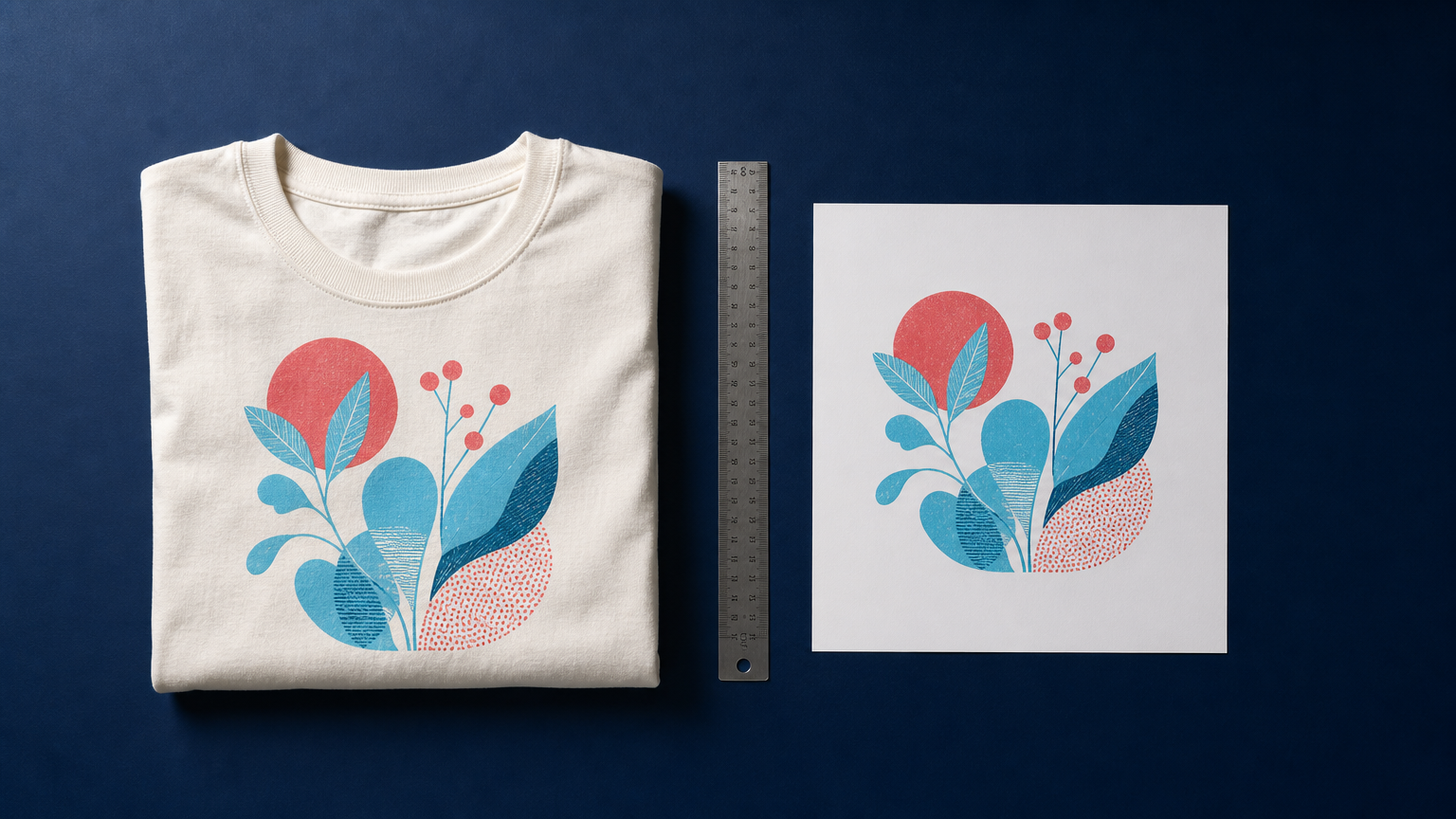
A striking AI image can look finished on a laptop and still fail the moment it is placed on a large T-shirt print area. Fine lines soften, texture turns muddy, and small lettering becomes a liability. That gap between a compelling generated image and a dependable production file is still one of the central problems in AI print on demand.
Higher-resolution image models have improved the starting point. During 2025, tools such as Midjourney V7 and higher-resolution FLUX offerings made it easier to begin with more usable pixels and stronger detail than earlier generations. But for Direct-to-Garment printing, or DTG, native resolution is only part of the job. Sellers still need to match the artwork to the product's print area, inspect details at output size, and make a deliberate decision about enhancement.
This is good news for POD creators: the workflow is becoming simpler. It is not becoming automatic.
Why AI print on demand still has a resolution problem
DTG prints ink directly onto fabric. The printer can only reproduce the information contained in the file, so the practical question is not whether an image is labelled “high resolution.” It is whether it contains enough real pixels for the dimensions of the intended print.
That distinction matters because DPI is often misunderstood. DPI describes how densely pixels are placed at a chosen physical size. Changing a file from 72 DPI to 300 DPI without resampling does not create more image detail. The important measurement is pixel dimensions relative to the final print size.
For example, a square artwork may look generous at 2048 × 2048 pixels, but it has a different level of pixel density on a small chest graphic than on a wide front print. A POD platform may accept the file, apply its own adjustment, or warn that the design is below its preferred threshold. None of those outcomes replace a visual check of the actual artwork.
The resolution gap is especially visible in AI-generated designs that contain:
- thin illustrated outlines or tightly packed patterns,
- small decorative marks that could merge into the fabric texture,
- pseudo-text, which should be replaced with real editable typography,
- soft gradients that may change character after printing,
- intricate faces, fur, foliage, or high-frequency texture.
What changed with higher-resolution generation
The practical shift is not that every design now arrives print-ready. It is that more generations begin close enough to the target size that enhancement can be a controlled finishing step rather than an attempt to rescue a tiny file.
Midjourney V7, released in 2025, introduced improved coherence and detail handling, while its upscaling options could double image dimensions. Black Forest Labs also documented FLUX.1.1 [pro] Ultra output at up to 4 megapixels. These developments matter for print-on-demand because more pixels give creators more room to crop, adapt aspect ratios, and retain detail before the artwork reaches a product template.
Higher pixel counts do not guarantee that a design will print well. An image can be technically large yet contain unstable line work, strange repeated texture, or details that are too subtle for the garment and ink process. Treat native resolution as a stronger starting point, not as a quality certificate.
Build from the final print area backward
The most reliable AI print on demand workflow starts with the physical product, not with the generator. Before writing a prompt or selecting an image, identify the print area, orientation, garment color, and the smallest detail the design needs to preserve.
1. Choose the product and target dimensions first
Open the POD provider's product template and note the recommended pixel dimensions. A vertical poster, a wide tote bag panel, and a centered shirt graphic need different compositions. Generating in an aspect ratio close to the final area reduces the amount of cropping and avoids stretching a design into a shape it was never built to support.
2. Generate for structure, not just style
Ask for a clear silhouette, generous negative space, and a limited number of focal elements. If the artwork needs text, create the illustration without text and add the type in a design tool afterward. This gives you control over spelling, legibility, licensing, and print scale.
For designs that will sit on a dark shirt, check the edges against a dark background before uploading. For light garments, inspect pale details and low-contrast areas. A transparent background can be useful, but it also makes stray pixels and weak edge treatment easier to miss. If needed, use Remove Background to isolate a subject before preparing the final layout.
3. Inspect the image at intended size
Zooming into a file at 100% is helpful, but it is not the same as viewing it at the size a customer will see on a garment. Place the design on a product mockup or template and inspect the smallest important marks. Look for broken contours, accidental near-text, awkward joins, and details that disappear when the artwork is reduced.
4. Enhance only when the file needs more pixels
Upscaling can help when the composition is strong but the file is undersized for its target area. It should not be used to hide a weak source image. Review the enhanced output carefully, because generative enhancement may alter fine texture or introduce details that were not present in the original.
For individual artworks, an AI Image Upscale workflow can help create a larger production file. For POD platforms that receive user-generated designs at volume, the same decision can be automated through the Deep-Image.ai API documentation, with platform-specific checks determining when a file is routed for enhancement.
Where automated upscaling fits in a POD platform
For a creator uploading a handful of designs, the final inspection is personal. For a marketplace or POD platform processing many uploads, resolution checks become an operational problem. A useful system separates three cases:
- Ready: the uploaded file meets the platform's chosen pixel requirement for the selected print area.
- Eligible for enhancement: the file is close to the requirement and is visually suitable for enlargement.
- Needs creator review: the file is too small, visibly blurry, or contains elements that should be rebuilt rather than enlarged.
This approach avoids treating every low-resolution upload the same way. An automated process can send eligible images through a 4K upscaling workflow, return an enlarged asset for review, and preserve the original file alongside it. The key is to make the result reviewable rather than silently replacing a creator's source.
Deep-Image.ai can fit into this kind of workflow as an image enhancement layer. It is most useful when a platform already knows the destination dimensions and needs a repeatable route for qualifying user-generated AI art before production.
Do not confuse bigger files with safer designs
Resolution is a production concern, but it is not the only one. AI-generated POD designs also need an intellectual-property and content review. Avoid prompting for living artists' signature styles, recognizable brands, copyrighted characters, or logos you do not have permission to use. Check every generated image for accidental marks, distorted symbols, and text-like artifacts before listing it.
It is also wise to order a sample for a new design style, garment color, or printer relationship. A screen preview cannot fully show how ink, fabric texture, placement, and wash behavior will affect the finished product.
A practical checklist before sending AI art to DTG
- Match the canvas ratio to the product's actual print area.
- Check pixel dimensions, not only the DPI number.
- Remove or rebuild AI-generated text and small symbols.
- Preview the design on the intended garment color.
- Use enhancement only when the source is structurally sound.
- Inspect the final enlarged image for altered details and edge artifacts.
- Review rights, trademarks, and content restrictions before publishing.
- Order a sample when the design will become part of a real product line.
As higher-resolution models become more common, fewer creators will need a long chain of corrective steps just to reach a usable file. The better workflow is still deliberate: generate close to the required format, make design decisions that survive print, then use upscaling as a controlled production step when it adds real value.
If you are preparing AI artwork for a larger print area, try AI Image Upscale on a copy of the final design and compare the result at the product's intended dimensions. For teams building this into a platform, start with the Deep-Image.ai API documentation and define clear thresholds for automatic enhancement versus creator review.
FAQ
Is 300 DPI always required for DTG printing?
No. A suitable DPI depends on the printer, product, and the physical size of the artwork. What matters first is whether the file has enough pixels for the final print dimensions. Check the guidance provided by your specific POD supplier.
Can AI upscaling make any design print-ready?
No. Upscaling can increase pixel dimensions, but it cannot reliably repair a blurry, poorly composed, or artifact-filled design. Start with the best available source image and inspect the enhanced output before production.
Should I use AI-generated text in a POD design?
Usually not. Generated lettering can contain spelling errors and distorted character shapes. Create the artwork without text, then add licensed, editable typography separately.
What is the best aspect ratio for AI print on demand artwork?
The best ratio is the one that matches the selected product's print area. Choose the product template first, then generate or crop the artwork to fit it with minimal empty space or stretching.
Can a POD platform automate resolution checks?
Yes. A platform can compare uploaded pixel dimensions with a selected product's requirements, route suitable files for enhancement, and flag weak files for creator review rather than processing every image in the same way.
