Deep Image: Photo Enhancer Is Now Available on Android
A photo does not always need a full desktop editing session. Sometimes you want to make an image clearer before sharing it, clean up a scanned receipt, or give an old family photo a more usable digital copy. Deep Image: Photo Enhancer is now available on Android, bringing several Deep Image workflows into one mobile app.
The app is designed for everyday images as well as practical tasks. You can improve a soft or low-resolution photo, work on an older picture, enhance a document image, or turn a simple drawing into a more polished visual. The goal is straightforward: choose an image, select the right tool, and review the result without moving the file to a computer first.
Download Deep Image: Photo Enhancer on Google Play to try the Android app with free AI credits.
What the Deep Image Android app can help with
Deep Image: Photo Enhancer combines several image tasks that often begin with a file already sitting in your phone gallery. Instead of treating every image the same way, the app offers separate tools for different types of visual problems.
Improve everyday photos with Auto-Enhance PRO
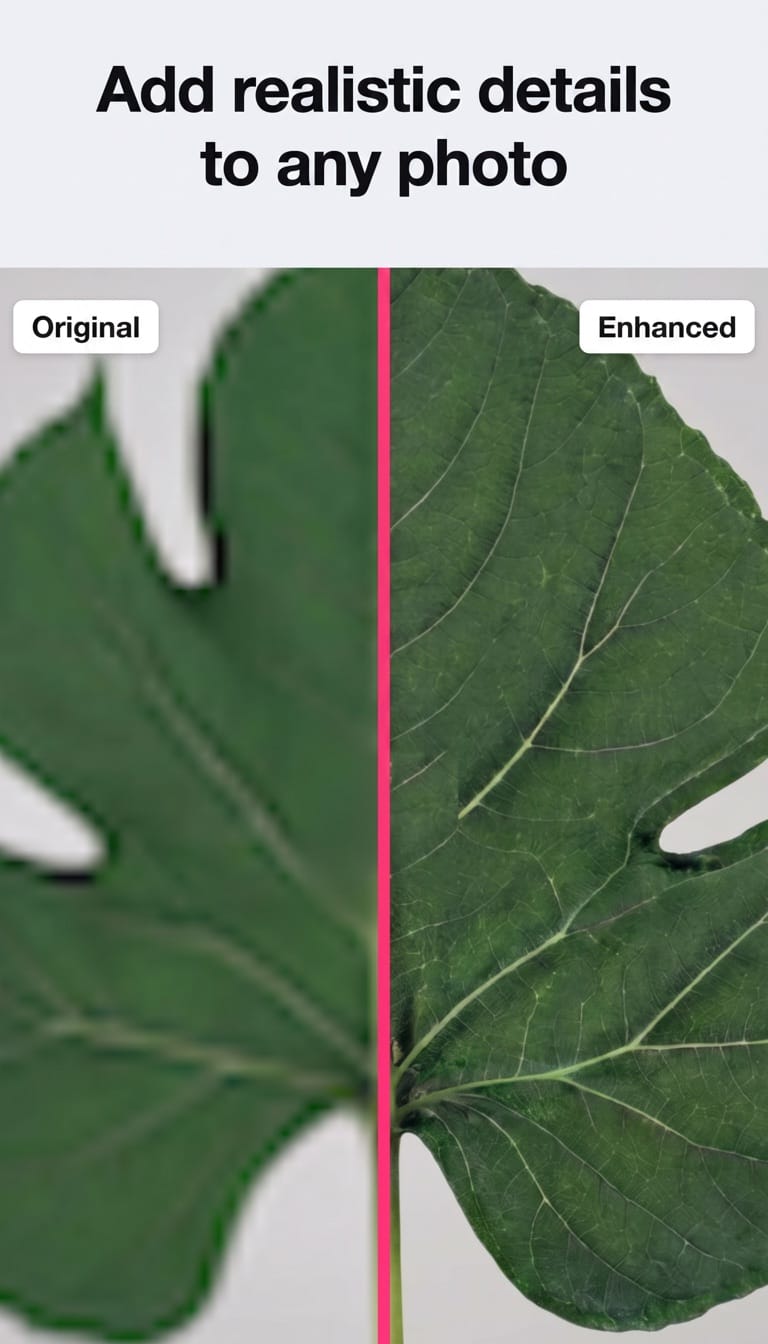
Auto-Enhance PRO is the app's photo-enhancement tool for images that look soft, low quality, or lacking in detail. It is intended to improve sharpness, color, contrast, and overall clarity with an automated workflow.
This can be useful for photos that need a quick cleanup before you send them to someone, post them online, or reuse them in a listing. As with any AI edit, check the result at full size before publishing or printing it, especially when faces, product details, or text need to remain accurate.
Restore old photos with care
Old family photographs can be faded, damaged, low contrast, or difficult to view on a modern screen. The app includes tools for restoring older pictures and colorizing black-and-white photos.
Restoration is most useful when you keep the original scan or photo unchanged and work on a copy. AI can make a damaged image easier to view, but it may also interpret missing visual information. For family archives or historically important images, compare the edited version with the source and treat new-looking details as an interpretation, not confirmed evidence.
Make documents easier to read
Phone cameras are often used to capture receipts, forms, notes, and older papers. The document-enhancement tool is designed to improve the readability of scans, screenshots, and text-based images. It includes a Normal mode for a cleaner result that preserves the original look and a Generative mode for stronger improvement when an image is blurry, noisy, or hard to read.
For important documents, always verify names, dates, amounts, and other critical information against the source. Image enhancement can support legibility, but it should not replace careful review.
Turn a drawing into an image
The app can also turn simple sketches and doodles into AI-generated images. This gives you a quick way to explore a visual idea from your phone, whether it starts as a rough concept, a notebook drawing, or a playful experiment.
Because the result is generated from a drawing, it should be treated as a new visual interpretation rather than a precise rendering of every line in the original sketch.
When a mobile AI photo enhancer is useful
A mobile workflow makes sense when the image is already on your device and the task is clear. A few common examples include:
- Preparing a phone photo for sharing or social media.
- Making an older family image easier to view.
- Cleaning up a photographed receipt or note before saving it.
- Checking whether a low-quality image is usable before transferring it elsewhere.
- Exploring an idea from a hand-drawn sketch.
For larger batches, detailed image control, or a browser-based workflow, you can also use AI Enhancer Studio. If your main task is increasing the usable resolution of an image, AI Image Upscale is available in the Deep Image web app.
A simple workflow from phone gallery to finished image
- Choose the image from your gallery.
- Pick the tool that matches the task: photo enhancement, old-photo restoration, document enhancement, or drawing-to-image.
- Run the edit and inspect the output, including important details such as faces, text, and edges.
- Save or share the version that works for your purpose while keeping the original when it matters.
This short process is useful because it starts with the real reason you opened the app, not with a long list of manual controls. The right tool depends on the image and the result you need.
Get started with Deep Image: Photo Enhancer
Deep Image: Photo Enhancer brings AI photo enhancement, image restoration, document cleanup, and drawing-to-image experiments into one Android app. It is built for moments when you need to improve an image without interrupting your day to open desktop software.
Try Deep Image: Photo Enhancer on Google Play and test the tools on images from your own gallery.
FAQ
Is Deep Image: Photo Enhancer available on Android?
Yes. Deep Image: Photo Enhancer is available through Google Play for Android devices.
What can the app do?
The app includes AI photo enhancement, old-photo restoration and colorization, document enhancement, and drawing-to-image tools.
Can I use the app for documents?
Yes. The document tool is designed for scans, screenshots, notes, forms, receipts, invoices, and other text-based images. Review important details against the original source.
Should I keep my original image?
Yes. Keeping the original is a good practice, especially for important photos, documents, and images you may want to edit again later.
