remove.bg Is Closing: How to Move Your Product Cutouts Before December 1, 2026
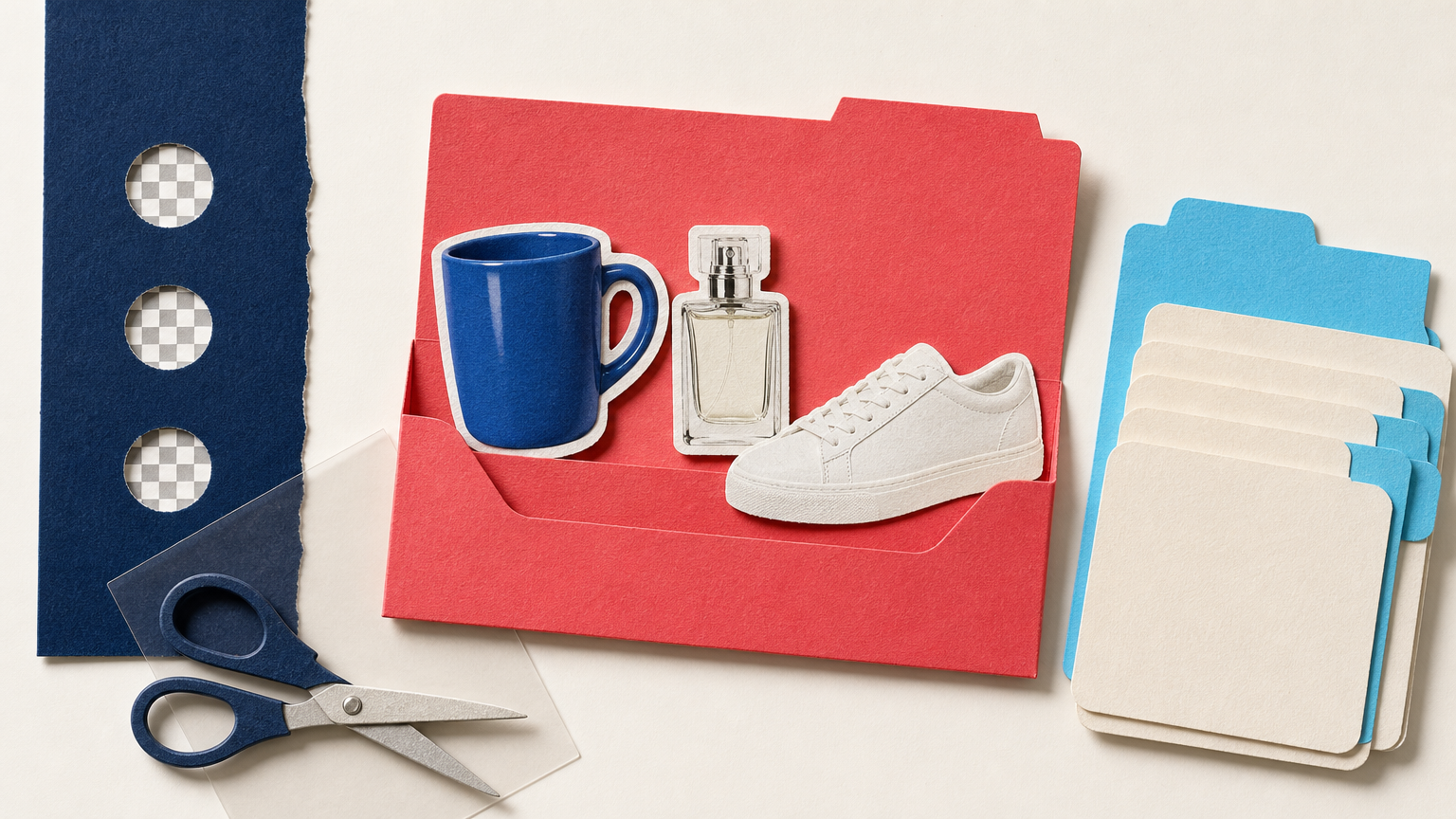
If you use remove.bg to make product photos ready for a marketplace, treat the next few weeks as a continuity project, not a last-minute software switch. remove.bg says its background-removal functionality is moving into Canva, and its standalone website will no longer be available after December 1, 2026. That means the familiar upload-and-download workflow needs a replacement plan before a new product launch or listing update catches you without clean cutouts.
This guide is for small online sellers who need consistent transparent PNGs or white-background product images. The goal is simple: keep your best source photos, document the cutout decisions that matter, and test a new workflow on the awkward images that reveal problems early.
First, be clear about what is changing
remove.bg is not a claim that background removal itself is disappearing. According to the remove.bg FAQ, the service is moving its background-removal functionality into Canva. For sellers, the practical change is that the standalone remove.bg site is due to close on December 1, 2026. If your team uses the site as a quick production step between a camera roll and a store listing, that specific workflow needs to be replaced. If you are weighing replacements, our remove.bg alternative comparison sets the two tools side by side.
Do not assume that every old habit will transfer automatically. A cutout is more than a file with transparency. It can carry decisions about which item stays, how closely the edge follows a product, whether a hand must be removed, and which version belongs to a SKU.
Save the assets that a new tool cannot recreate
Before testing alternatives, collect the material that defines your current listing images. The original product photo matters most. A transparent cutout without the original limits your options if you later need to fix a halo, recover a shadow, or create a new crop.
- Original source photos: Keep the highest-quality photo you uploaded, not only the processed PNG.
- Approved cutouts: Download the version currently used on each listing, especially best sellers and seasonal items you will reuse.
- File-to-SKU mapping: Make a simple sheet that links product codes to originals, cutouts, marketplace images, and the person or folder responsible for them.
- Background rules: Note where you need transparency, pure white, a natural shadow, or a lifestyle scene. Different destinations may need different derivatives.
- Problem examples: Keep a small test folder with difficult items: glass, reflective packaging, fine straps, loose fabric, pale products on pale backgrounds, bundled products, and products held in a hand.
Also update bookmarks, saved browser tabs, instructions for freelancers, and any checklist that tells someone to “run it through remove.bg.” The migration fails when the team knows the new tool but the day-to-day instructions still point to the old one.
Test a replacement with a five-image cutout set
Do not judge a replacement from one easy product photographed on a clean table. Pick five images that represent your actual catalog. This gives you a quick, repeatable test without turning the move into a large project.
- A simple hero product: for example, a shoe, mug, bottle, or boxed item with a clear outline.
- A reflective or transparent product: for example, jewelry, glass, glossy packaging, or a clear container.
- A complex edge: a plant, fabric, fringe, thin handle, or fine wire.
- A multi-item image: a bundle or set where every included part must remain visible.
- A real production problem: an item partly covered by a hand, stand, or foreground object.
For each result, compare it with the original at full size. Check the complete outline, not just the center of the product. Look for missing corners, clipped handles, stray background fragments, white or dark halos, unwanted gaps, and details that have been altered rather than separated.
Choose the removal approach that matches the image
A single automatic setting is convenient, but it is not always the right answer. Deep-Image.ai Remove Background offers six removal modes. For an ordinary listing image, General Purpose is the suggested starting point. Product / Item is designed for product and object edges, while Prompt-Guided lets you specify what should remain when there are multiple objects. Rebuild & Cutout is intended for cases where part of the item is hidden behind a hand or another object before the background is removed.
Those options give a seller a useful migration test: run the same difficult source through the mode that best matches it, then inspect whether the product is still faithful to the photo. Do not use an edit that changes the product's shape, label, material, or included parts just because the background looks cleaner.
Copy-ready prompt for a multi-product photo
For a photo with several objects, start with a narrow instruction that names what must remain. This is a suggested prompt, not a guarantee of the output.
Keep only the blue ceramic mug and the matching saucer. Remove the table, napkin, spoon, and all other objects. Preserve the mug shape, handle, glaze color, logo, and visible reflections.If the result includes an unwanted object, do not make the next instruction longer in every direction. Name the unwanted object and restate the product details that must remain.
Plan the output your listing actually needs
Transparent cutouts are useful as working assets. Marketplace-ready images may need another step. Some channels require a white background, while product ads and social posts may work better with a controlled scene. Keep these outputs separate so that you do not accidentally overwrite the transparent master.
After creating a cutout, you can use AI Enhancer PRO or Packshot PRO when you need a white background or a studio-style product image. For a different setting, AI Background Generator can create or use a replacement background. Review every result before publishing, particularly where a new background touches glass, hair-like fibers, shadows, labels, or product edges.
A simple migration checklist for sellers
- Export original photos and approved cutouts for active and reusable listings.
- Create a short inventory that links every asset to a SKU and selling channel.
- Build a five-image test set with at least one difficult edge case.
- Test the new background-removal workflow and inspect results at full size.
- Choose an output rule for each channel: transparent PNG, white background, or approved scene.
- Update templates, freelancer briefs, browser bookmarks, and team instructions.
- Reprocess a small live batch before December 1, 2026, then compare it with the cutouts already on your listings.
The most useful migration outcome is not a folder of new PNGs. It is a repeatable rule: which source image to use, which mode to try first, what defects to inspect, and where the approved file belongs.
If your shop calls the remove.bg API from a script, plugin, or integration rather than using the website, the remove.bg to Deep-Image.ai migration guide shows the equivalent API requests.
When a clean cutout is not enough
Background removal cannot solve every product-photo problem. If a source is badly blurred, the product blends into the background, or a key label is unreadable, a clean edge alone will not make the listing ready. Start with the best available source and use a workflow that preserves what shoppers need to see.
For a product that is unusually reflective, transparent, or partly obscured, test a few real examples before moving an entire catalog. It is better to identify a manual-review group now than to discover inconsistent edges after a marketplace update has already gone live.
Make the switch before a catalog deadline forces it
remove.bg's standalone site is scheduled to close on December 1, 2026. For an online seller, that date is a reason to test your next cutout workflow while the current one is still available. Start with a handful of products, keep the originals, and document the decisions that protect product accuracy.
If you want to test a new cutout workflow, try Remove Background in Deep-Image.ai with one simple product photo and one difficult edge case. Compare both results with the original before deciding how to move the rest of your catalog.
FAQ
Is remove.bg the company closing?
No. The announced change concerns the standalone remove.bg website and workflow. remove.bg says its background-removal functionality is moving into Canva.
What should I save before remove.bg closes?
Save the original product photos, approved transparent cutouts, the file-to-SKU relationship, and any marketplace-specific derivatives you may need again. The original photo gives you the best chance to correct or recreate a result later.
How many images should I test before changing tools?
Begin with five representative images: one easy product, one reflective or transparent item, one complex edge, one multi-item shot, and one difficult real-world image. Expand the test only after you can explain which workflow fits each type.
Can I use a new background after removing the old one?
Yes, but keep the transparent cutout as a separate master. A white background, marketplace image, and lifestyle image may each be useful for different channels, and each should be checked for product fidelity before publishing.
